
Before you change a setting
- Check the exact package, version and file reference on the publisher’s confirmed channel.
- Back up important information and make sure you can recover any existing account.
- Read the required Android version from the actual release record; do not rely on a generic “Android 5+” claim.
- Keep sufficient free space for both the package and installation. APK size alone is not the full installed size.
Understand “install unknown apps”
On many Android devices, installation approval applies to the app opening the package, such as a browser or file manager. Menu names vary by Android release and manufacturer. Do not follow a universal screenshot blindly. A device managed by an employer or parent may intentionally block changes; respect that policy.
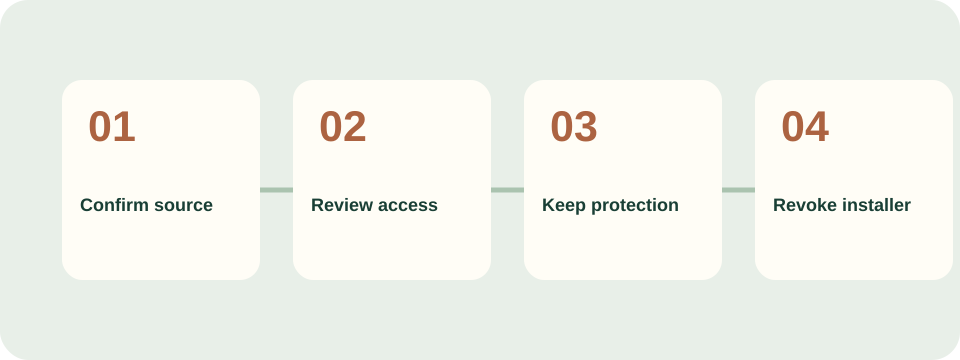
A cautious installation sequence
- Open the documented file using the browser or file manager you intended to use.
- If Android asks for installation permission, read which app will receive it. Grant only when the source and file have been checked.
- Read security warnings. If protection blocks or flags the package, stop rather than disabling protection.
- If installation succeeds, review first-launch permissions before continuing. Refuse unrelated or unexplained access.
- Return to device settings and revoke the browser or file manager’s ability to install unknown apps when you no longer need it.
An existing app changes the question
An update must be compatible with the installed package and its signing history. A collision or signature error may be protecting an existing installation. Do not uninstall immediately to force a new file in: you may lose local data or access to an account.
Use the installation error guide to distinguish compatibility, file corruption and package conflicts.
Stop conditions
- A webpage asks you to disable Play Protect or a device security feature.
- Installation requires an unrelated app, remote-access session or payment.
- The publisher cannot explain a changed package name or signing certificate.
- A download changes into a configuration profile, script or an unexpected file type.
Android reference
This guide describes general Android behaviour. It is not a device test of Teen Patti Master.